What Does Green Mean on Turnitin? (1–24% Similarity + Is It “Safe”?)
1. The “green relief” moment (and why I still don’t fully relax)
I’ve seen this one done to so many students (and to a degree, myself, too): you open your Canvas/Moodle/Blackboard, click your submission, and you see green, probably 12%, 18%, 22%.
It feels like a green light.
Then your brain immediately asks:
● “Is green basically ‘good’?”
● “‘Under 15%’ was what my professor said, does green means I’m good?”
● “Why do most matches show up in my references?”
● “Why does ‘my friend’s Turnitin’ color differently?”
This post is in response to the question you actually mean:
Does green mean I can submit without worry?
2. Quick answer: what green usually means
So in the classic Turnitin similarity color bands, green means low similarity (approx 1% to 24% matching text).
But here’s the thing that people miss: the colors can differ based on integration/view (LMS settings, Turnitin product experience, institution configuration). So the most consistent thing to interpret is always:
1. the percentage number, and
2. what’s actually highlighted in the report.
If you’re looking for the full context behind scores (and why citations can inflate them), read my pillar: Turnitin Similarity Score Explained (2026): What It Actually Means and How to Use It.
3. Mini color chart (so you can orient yourself fast)
Here’s the “classic” chart many students see:
Color | Typical range | Plain-English meaning |
Blue | 0% | No matching text |
Green | 1–24% | Low similarity |
Yellow | 25–49% | Moderate similarity |
Orange | 50–74% | High similarity |
Red | 75–100% | Very high similarity |
If your LMS shows slightly different low-end coloring, don’t panic. Just treat the chart as a range indicator, not a moral judgment.
Turnitin publishes the same ranges in its Turnitin’s official similarity score color bands guide, including green as the low-similarity range.
4. The real question: is green “safe”?
Green is often a low-risk signal, but it’s not a permission slip.
When someone asks “Is green safe?”, I translate it into three practical checks:
Check #1 — Where do the matches live?
● References/bibliography? That’s usually normal.
● Quotes? Normal if they’re properly quoted and cited.
● Body paragraphs? That’s where you should pay attention.
Check #2 — Is one source dominating a paragraph?
A green score can still hide a problem if:
● one source makes up most of a body paragraph, or
● you have a long, continuous highlighted block.
Check #3 — Are your citations actually present where needed?
This sounds obvious, but it’s a common “green trap”:
● the percentage is low,
● but the key factual claim still has no citation, or a weak citation.
My rule of thumb is simple:
Green means “review quickly,” not “relax completely.”
That framing isn’t just personal preference—University of Adelaide’s guide to interpreting Turnitin similarity reports makes the same point: green can look ‘okay,’ but you still need to review what’s actually matching.
5. Why green is so common (and probably totally fine)
Many students think Turnitin “finds plagiarism.” It’s not, it’s detecting match overlap.
So green is common for boring, normal matches:
● Standard phrases in academic English (“This paper will examine…”, “Our results indicate…”)
● Course outline templates or lab format templates
● Reference lists (citation format is the same for everyone by design)
● Short ping-pong matches throughout the document
That’s why two students in the same class can each be “green,” but have totally different match patterns within their report.
6. A practical triage table: what I ignore vs what I fix first
This is the fastest way I know to interpret a green score without spiraling:
What’s driving the green score? | Usually fine? | What I check next |
References / bibliography matches | Often yes | Is it mostly in the reference section (not body text)? |
Properly quoted text | Often yes | Are quotation marks + citations actually correct? |
Small scattered matches | Often yes | Are they scattered, or clustered in one paragraph? |
One paragraph dominated by one source | Not usually | Is it too-close paraphrase or copied structure? |
Long contiguous blocks in body text | Risky | Does it need rewrite, quotation, or stronger attribution? |
If you only do one thing with a green score, do this: find the “dominating source” blocks and clean those up first.
7. “Green means something different in my LMS” — yes, that happens
This is one of the most common reasons people search:
“what does green mean in Turnitin”
Because they’re not seeing the same thing their friend sees.
A few reasons that happens:
● different LMS integrations can display colors differently
● your instructor can change report settings
● Turnitin’s interface “experience” can differ (classic vs newer views)
My 15-second self-check:
1. Read the % number first.
2. Look for a legend/help tooltip in your LMS.
3. If there’s no legend, assume your view may group colors differently and open the report to confirm what’s actually matching.
If your school has an IT help page for Turnitin-in-Canvas, it often lists the exact color bands used in that environment. (That’s the cleanest way to resolve “my friend’s green isn’t my green.”)
8. What I do next when I see green (a 60-second checklist)
Here’s my “don’t overthink it” routine:
1. Open the Similarity Report (don’t stop at the icon).
2. Go straight to Match Overview and scan the top sources.
3. Ask: are the big matches coming from
● references,
● quotes, or
● body text?
4. If your view allows filters (exclude quotes/bibliography/small matches), use them once to reduce noise and see your “real” body-text overlap.
5. If your course has a strict threshold, follow the syllabus—and if you’re on the edge, ask your instructor what they evaluate (overall % vs body text).
That’s it. It’s not complicated. The mistake is treating green like a certificate instead of a prompt to review.
9. Green vs blue (how I think about it)
● Green usually means some similarity exists (often 1–24% in classic ranges).
● Blue often means no matching text (0%)—but in some views the low end can be grouped differently.
Practically, I treat both the same way:
Read the percentage, open the report once, and check where the overlap lives.
Internal link suggestion: If you want the companion post, link here: What Does Blue Mean on Turnitin? (0% Similarity Explained + Color Chart).
10. Conclusion: green is a “low similarity” signal—not a guarantee
If you’re seeing green, it usually means you’re in the low end of similarity. That’s a good sign.
But the safest interpretation is never “green = safe.” It’s:
● green = low overlap, and
● I should still confirm what’s overlapping (especially whether it’s references/quotes vs body text).
If the report shows your highlights are mostly explainable—citations, references, short generic phrases—green is genuinely low-risk. If green hides one body paragraph that matches a single source heavily, that’s the part you fix.
In other words: don’t chase the color. Chase a clean story inside the report.
11. FAQ
What does green mean on Turnitin?
Green usually indicates low similarity (often in the 1–24% range in classic Turnitin color bands).
What does green mean in Turnitin (in my LMS)?
It can vary by integration/view. If your LMS colors look different from someone else’s, rely on the percentage and open the Similarity Report to confirm what’s matching.
Is a green flag good on Turnitin?
Usually it’s a low-risk signal, but it isn’t a guarantee. It depends on whether matches are in references/quotes (often fine) or concentrated in a body paragraph (needs review).
Is 20% similarity still green—and is it okay?
20% is often still green in classic ranges, and it can be okay—especially if it’s driven by references/quotes. But you should still open the report and check where the matches are.
Why is my green score mostly references or quotes?
Because references are standardized and quotes match by design. Use the report details (and filters if available) to focus on body-text overlap.
Can a green score still be plagiarism?
It can still contain a problematic match (for example, one copied paragraph). That’s why the Match Overview and highlighted sections matter more than the color.

Related Articles
View all
Similarity Report vs Plagiarism: Why Turnitin Matches Don’t Automatically Mean Cheating
Similarity ≠ plagiarism. Turnitin shows text overlap—not intent. Learn what matches are normal (quotes, references), what patterns are risky, and how instructors interpret the report.
How to Download a Turnitin Similarity Report PDF (Where the Download Button Is)
Need the PDF for your records? Here’s where the Turnitin download option usually lives, how to export “Current View,” and what to do if the button is missing or you can’t see the report.
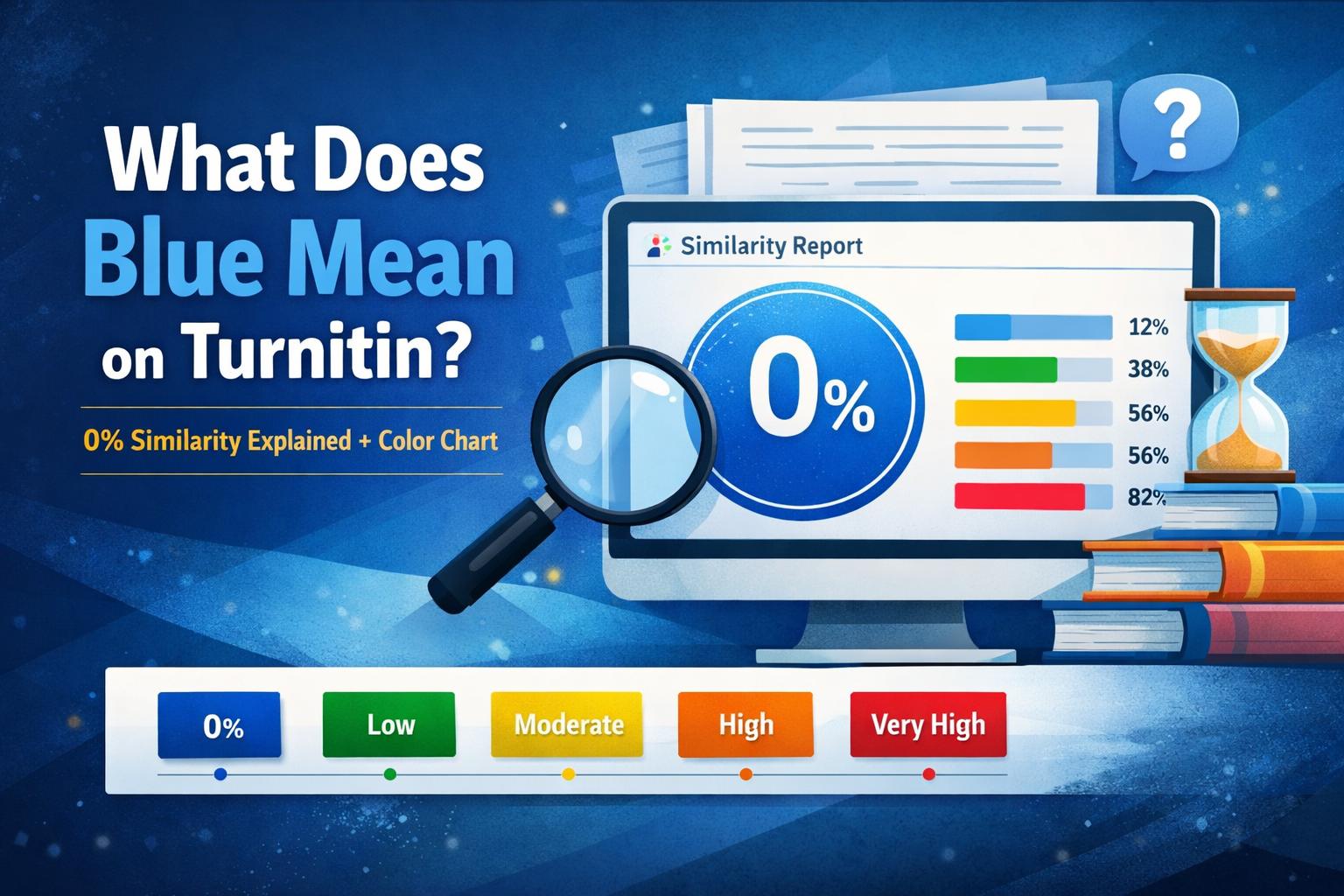
What Does Blue Mean on Turnitin? (0% Similarity Explained + Color Chart)
Blue usually means 0% similarity (no matching text). Here’s what it means, why colors can differ by platform, and how to compare blue vs green/yellow/red.