How to Download a Turnitin Similarity Report PDF (Where the Download Button Is)
1. The “I need the PDF right now” moment
This article is specifically for the situation that students repeatedly find themselves: the professor or TA wants you to “attach the Turnitin Similarity Report PDF,” you have to keep one for your own records, or you have to have a clean report to discuss with your instructor.
The “I haven’t downloaded it” problems are not the download button problems. They are the “I haven’t gotten into the Turnitin report viewer” or “I don’t have rights to view the report” problems. Once you recognize these things, the process is a lot easier.
2. TL;DR: the 30-second download method
Open the Similarity Report (the Turnitin report viewer) → click Download → choose Current View → save the PDF.
One important detail: Turnitin describes the PDF as a snapshot of your current view, which means the PDF reflects what you’re currently looking at (including which layers are visible). (Downloading a Similarity Report as a student – Turnitin Guides)
If you’re downloading the PDF because you’re unsure what the similarity % actually means, read my pillar: Turnitin Similarity Score Explained (2026).
3. How do I download a Turnitin Similarity Report as a PDF?
Here’s the trick: the download link usually only shows up in the Turnitin Similarity Report viewer that shows you the match highlights, sources, and report interface.
If you’re still on the very basic LMS assignment page that only shows a grade, submission time stamp, or little similarity indicator, you’re probably not even in the viewer yet. So you’ll keep “not seeing” the download link because you’re not on the page where it’s located.
When you are, sniff around the report UI for a Download label or download icon. (Turnitin’s own student instructions actually tell you to click on “Download and export Current View as the PDF.”) (guides.turnitin.com )
4. What “Current View” means (and how to avoid a “blank-looking” PDF)
“Current View” can be the difference between a helpful PDF and a frustrating one.
According to Turnitin, the PDF export will reflect what you’re actually seeing when you export, so before I hit export, I always stop and double-check that I’ve got the Similarity content, the highlights, match overview—or whatever else I want in my PDF—in view.
If you end up with a PDF that doesn’t contain what you were expecting, it’s usually because you hit download while the wrong layer/view was showing.
5. Step-by-step (generic workflow)
If your school provides Turnitin access directly (or your portal drops you into the Turnitin viewer), the workflow is usually:
1. Open your submission and enter the Similarity Report view.
2. Confirm the similarity information is visible (so the PDF captures what you need).
3. Click Download → choose Current View → save PDF.
That’s it, once you’re in the correct interface, it’s usually straightforward.
6. If you’re in Canvas: the missing step is usually “open the viewer”
Students in Canvas might think the similarity icon/percent is the report.
Usually it is just a marker that takes you to the report viewer.
Turnitin adds to Canvas Plagiarism Framework docs the access paths for students (open from submission details, open from SpeedGrader in many implementations).
Once in the report viewer, downloading is the same: Download → Current view.
7. When the download button is missing (common causes + what to do)
Here’s a quick diagnostic table that covers the “real” reasons the download option disappears.
What you’re seeing | Most likely cause | How to confirm fast | What to do next |
You can’t open the Similarity Report at all (no viewer, no highlights) | Student access is restricted by assignment settings | Ask: “Can students view the Similarity Report for this assignment?” Turnitin notes instructors can prevent students from viewing reports. | Ask the instructor to enable student visibility or export the PDF for you |
Similarity Report exists, but it “hasn’t generated” yet / you see no report content | Report generation timing/settings or processing delay | Turnitin lists settings and generation issues as common causes. | Refresh later; if it never generates, ask instructor to confirm settings |
The report viewer loads forever or throws errors | Loading/session/file-related issues | Turnitin provides troubleshooting for report loading delays/errors. | Retry (new browser/incognito), then send screenshot + error details to instructor/IT support |
You see a similarity % in the LMS, but there’s no Download option anywhere | You’re not actually inside the Turnitin report viewer | Turnitin documents that LMS views are often separate from the report viewer (Canvas paths are a good example). | Use the LMS’s “view report” path to open the viewer, then download Current View |
You can open the viewer, but the PDF looks “wrong” (missing highlights/sources) | You downloaded the wrong layer/view | Turnitin frames the export as a “Current View” snapshot. | Turn on the Similarity layer/highlights, then re-download Current View |
8. The simplest “do this next” plan
If I was in a hurry to get the PDF today, I'd do this:
Klik first to make sure I'm actually inside the Similarity Report viewer (and not just looking at a number on the LMS page). Then I export Download → Current View.
And if I'm totally unable to open the report viewer, then I stop looking for a 'button' and consider the two big possibilities. Either the report hasn't generated yet, or I don't have student access to the report. In that situation the quickest way to resolve the issue is a quick ping to the instructor asking whether the report has been opened to students, or asking them to export the report for me.
9. FAQ
Can students download a Turnitin Similarity Report as a PDF?
Yes, Turnitin provides student steps to download the report as a PDF by exporting “Current View.”
What does “Current View” mean when downloading?
It’s a snapshot of what you’re currently viewing in the report interface, including which layers are visible.
Why can’t I see the download button?
Most commonly: you’re not inside the report viewer yet, student access is restricted, the report hasn’t generated, or the viewer is erroring/loading slowly.
I’m using Canvas—how do I open the report?
Turnitin documents Canvas-specific paths for students to view the Similarity Report; once you’re in the viewer, you can export “Current View” the same way.
If I resubmit, will the PDF update automatically?
No—treat the PDF as a snapshot. If your report updates after resubmission, open the newest report and export Current View again.

Related Articles
View all
Similarity Report vs Plagiarism: Why Turnitin Matches Don’t Automatically Mean Cheating
Similarity ≠ plagiarism. Turnitin shows text overlap—not intent. Learn what matches are normal (quotes, references), what patterns are risky, and how instructors interpret the report.
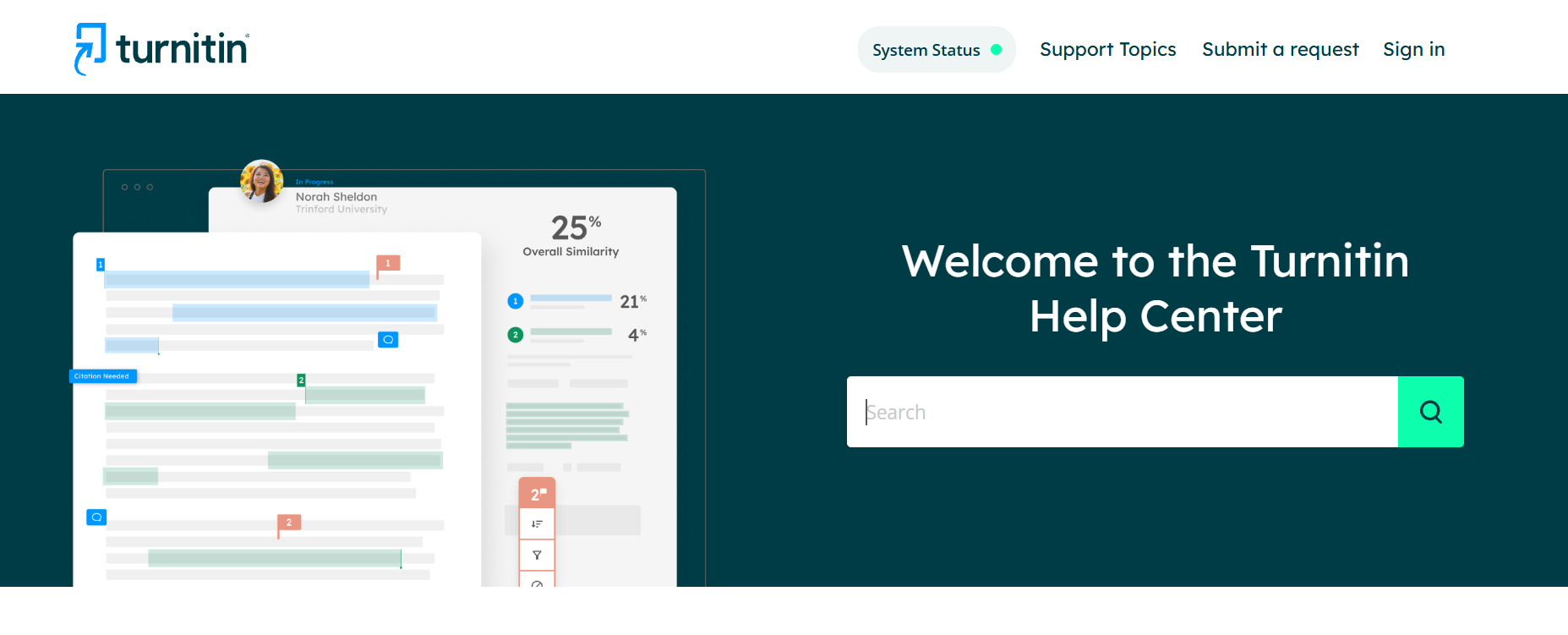
What Does Green Mean on Turnitin? (1–24% Similarity + Is It “Safe”?)
Green usually means low similarity (often 1–24%). But “safe” depends on what’s matching—here’s how to check the report before you submit.
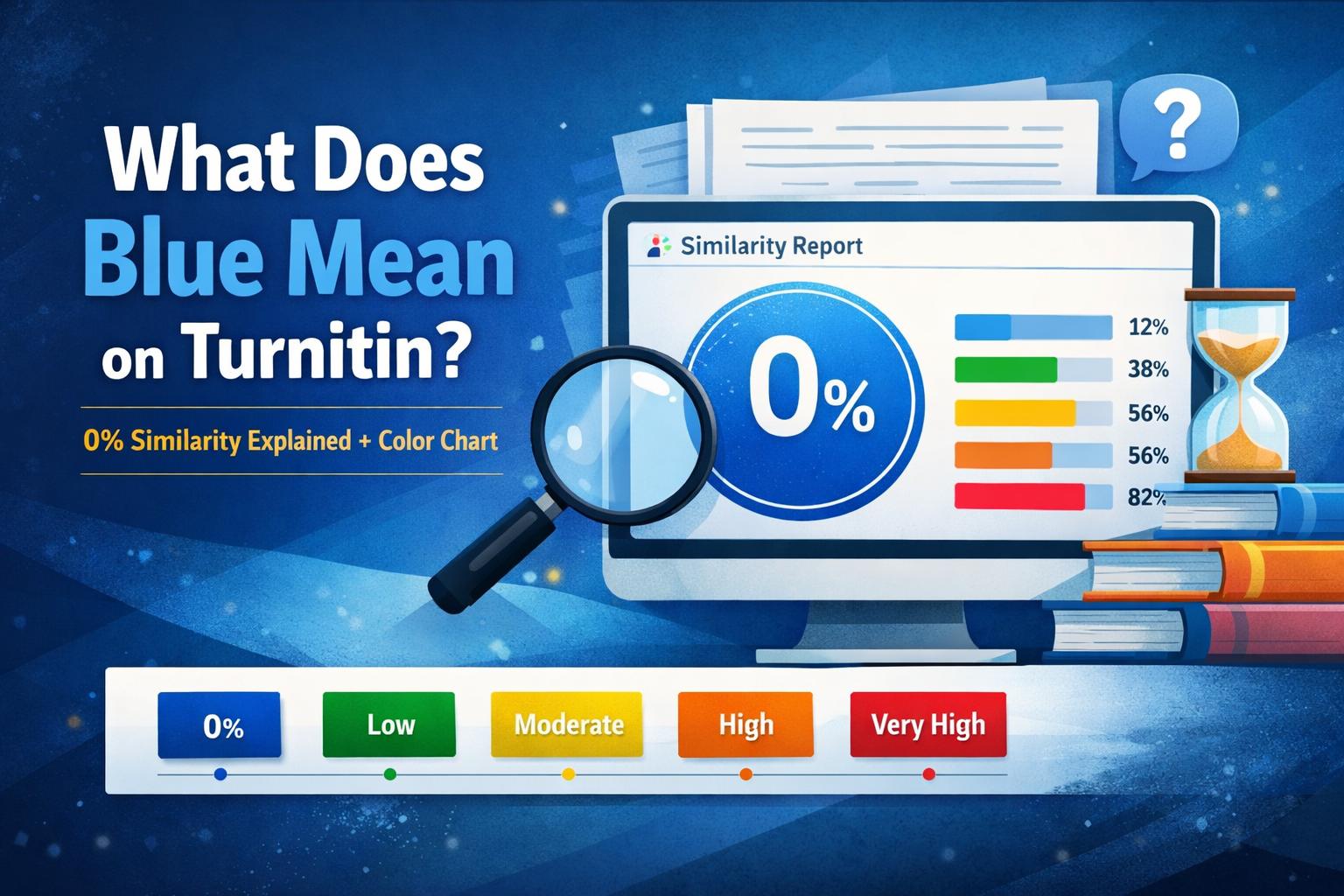
What Does Blue Mean on Turnitin? (0% Similarity Explained + Color Chart)
Blue usually means 0% similarity (no matching text). Here’s what it means, why colors can differ by platform, and how to compare blue vs green/yellow/red.